
¿What is the Billing Portal?
It's a plataform where yo can:
- Visualize your telecommunication expenses in a graph
- Visualize information of your users and services.
- View and download in a CVS file billing details from your last three monthly invoices.
How can I access to the Billing Portal?
Enter to our web page with your selected email and password https://app.playtelecom.com/login
If you don't have your credentials to access or if you want to change the selected email make a request to soporte@playtelecom.com
Browsing the Portal
You will find the option to access from the main menu:
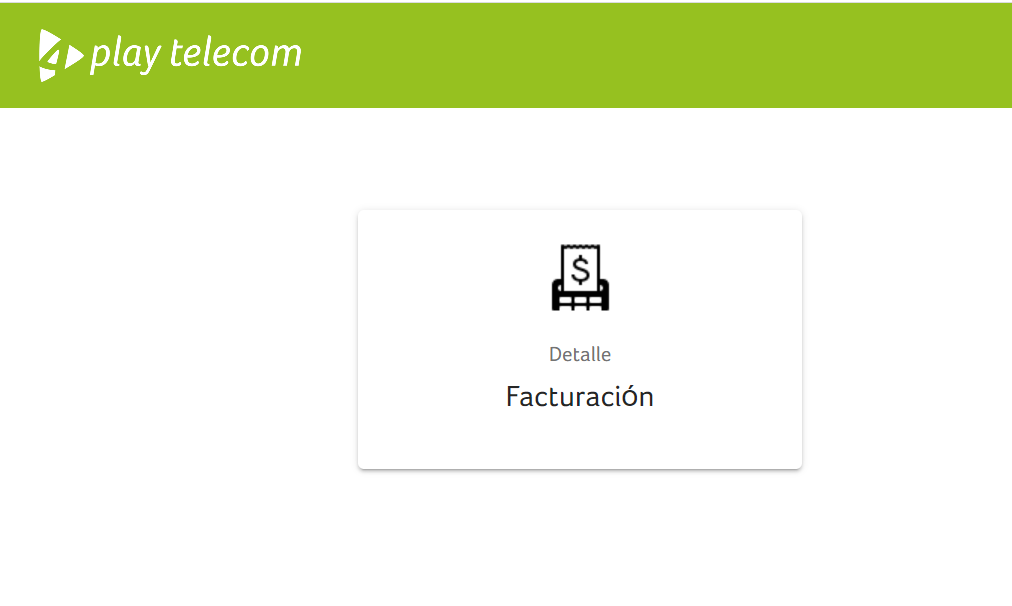
IMAGE 1: Main menu form the Billing Portal
1. HOME - TIPO DE GASTO
Clicking HOME at the menu allows you to visualize a graph with your expenses on different ways:
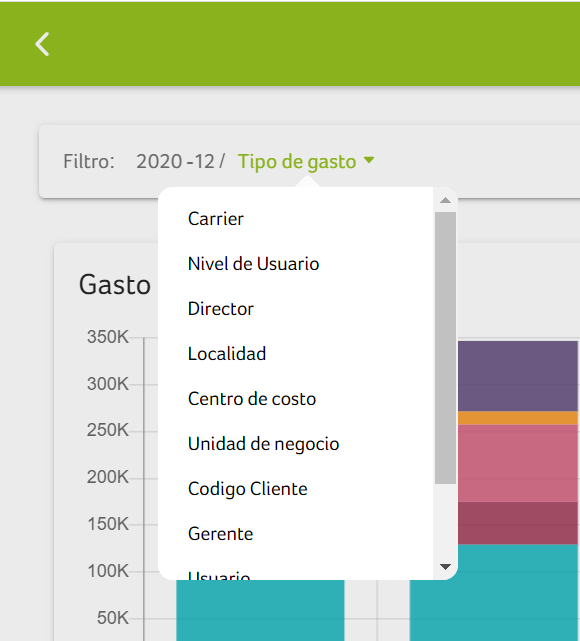
IMAGE 2: Dropdown menu options to view expenses.
The view by Expense type is the default setting displayed at the HOME page. This are the same expenses shown on you monthly invoice.
| Initials | Meaning | Examples |
| DAP | Datos plan | Browsing monthly services |
| FIP | Fijo plan | Voice monthly services. |
| SEP | Servicios especiales plan | Rents montly services. |
| MOP | Móvil plan | Mobile plans monthly services. |
| MOX | Móvil extra | Voice aditional services in mobile plans. |
| FIX | Fijo extra | Voice fixed aditional services. |
| LDX | Larga Distacia extra | Long distance aditional services like roaming and international calls. |
| SEX | Servicios especiales extra | Shipping, full price shoppings. |
| DAX | Datos extras | Browsing aditional services. |
IMAGE 3: Visualization of Expense Type
1.2 Detalles/ Billing details
On the same menu that show Expense type as default there is an option called "Código de cliente" if you have more than one bill monthly (because you have different services or different company names), or simply because you want the detail of your total, this is the option you should click.
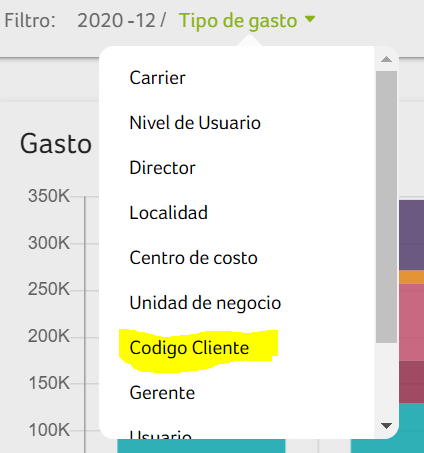
IMAGE 4: Dropdown menu options.
To see your billing details : Select the option Client ID on the dropdown menu. You will be shown the customer code(s) belonging to your account as a list and the last three billing months on the side, on top your billing consumption graph and at the bottom your invoice total represented in number with mexican pesos before taxes.
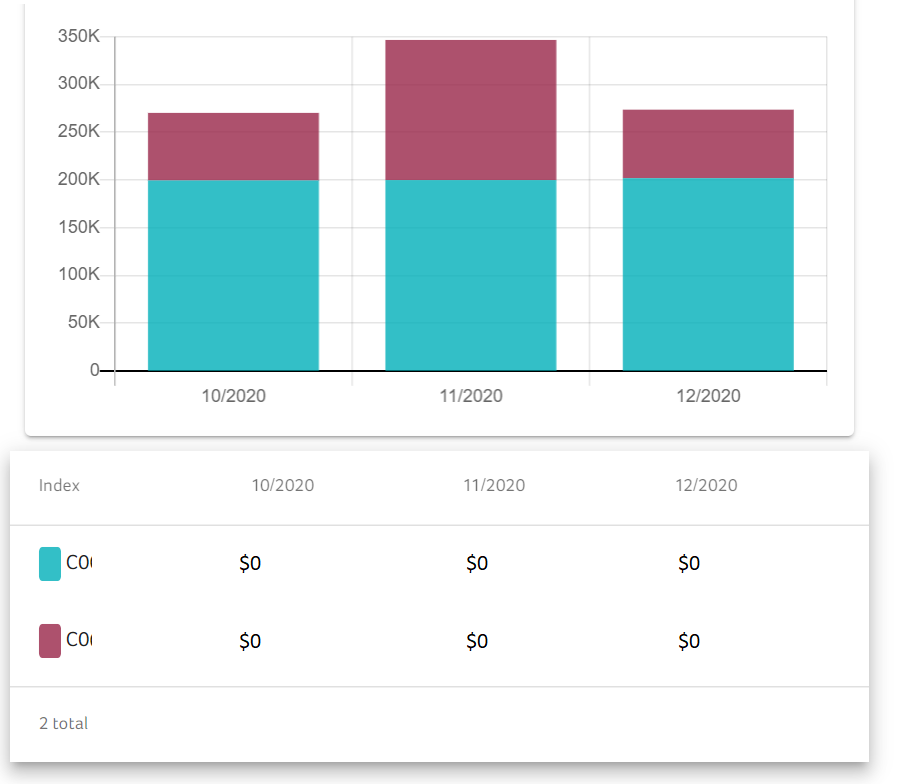
IMAGE 5: Client ID informations shown
Select the customer code and right click on the month's total of your interest, another dropdown menu will appear. Select the option Detalle.
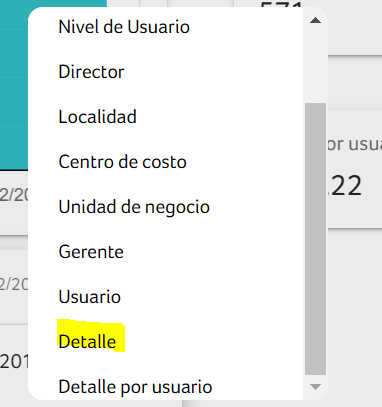
IMAGE 6: Second dropdown menu with Detail option
After that selection, your billing details from the month will be displayed, you can download them by clicking on the download icon at the top right corner of the page.
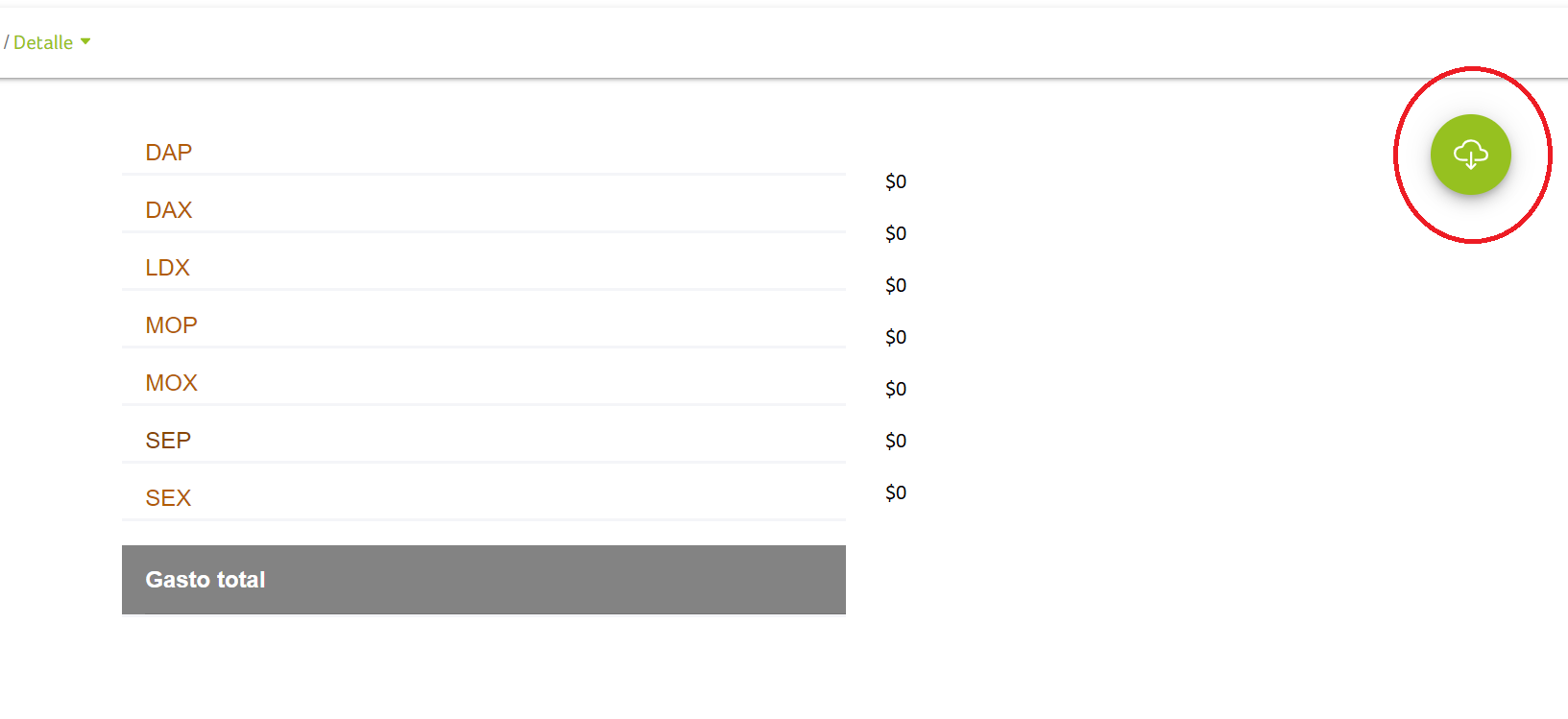
IMAGE 7: Billing details and file download
Downloaded File
And Excel (exl) file will be downloaded with all the concepts and service details displayed. To organize this information and compare it to your invoice we recommend to create a pivot table .
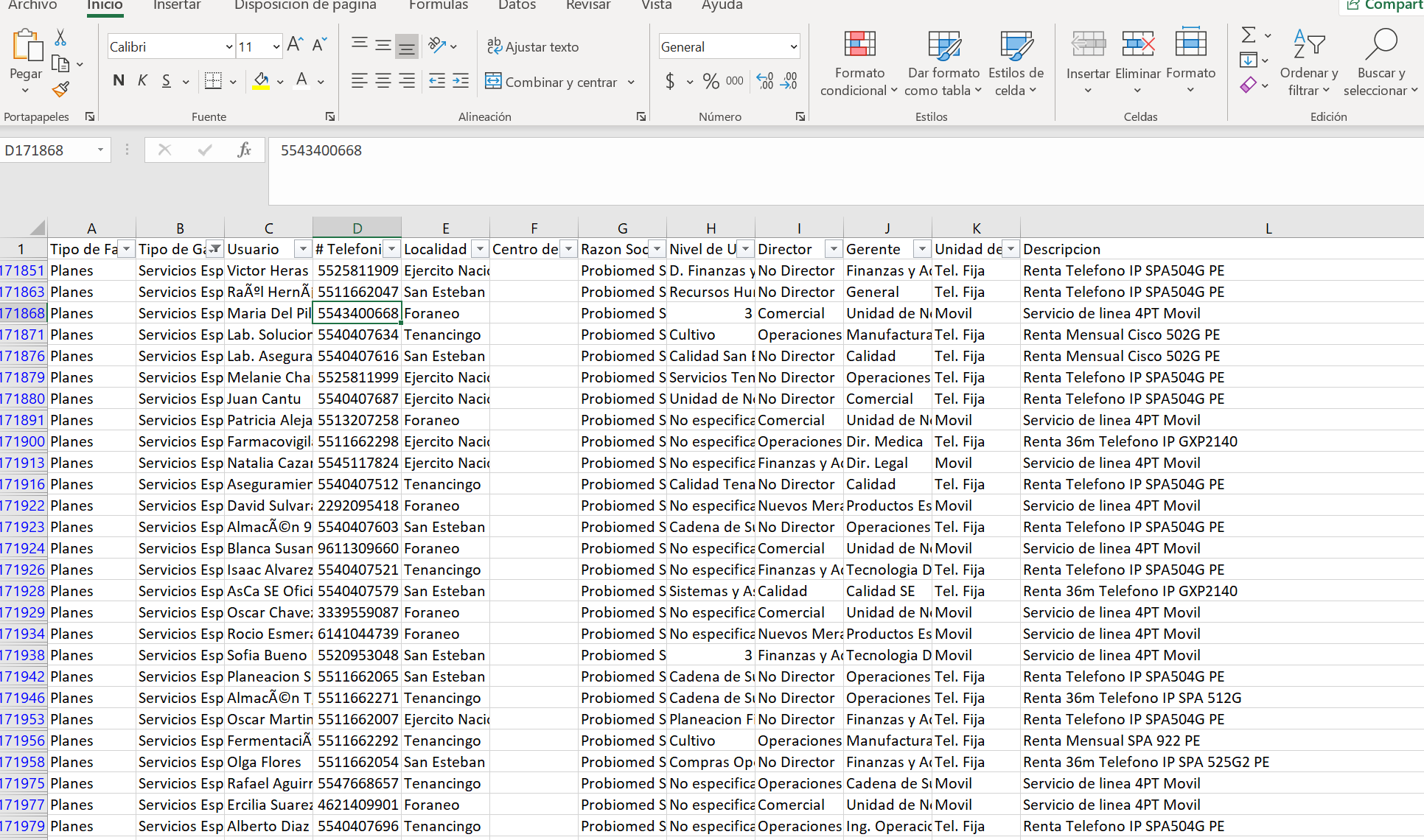
IMAGE 8: Visualization of the detail downloaded
Creating a Pivot Table
Select all the information. Once selected, click on the Insert option and then click on Pivot Table.
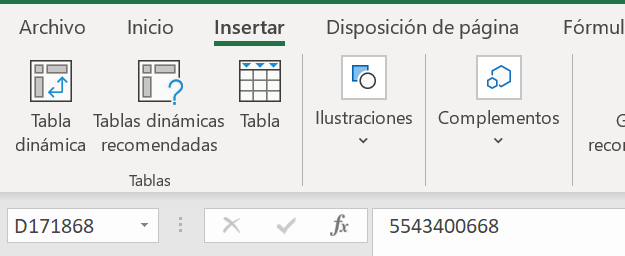
IMAGE 9: Options on creating a Pivot Table
Another sheet will be created in the same document which we'll name as "Details" where we will make our pivot. On the right hand side there will be a list of options.
Select on the list the concepts you want to see displayed in the pivot table. To have the concept details as shown in your invoice select the following concepts from the list and place them in this order:
- Bill Type - Rows
- Tipo de Gasto- Rows
- Costo- Values
It will be like this:
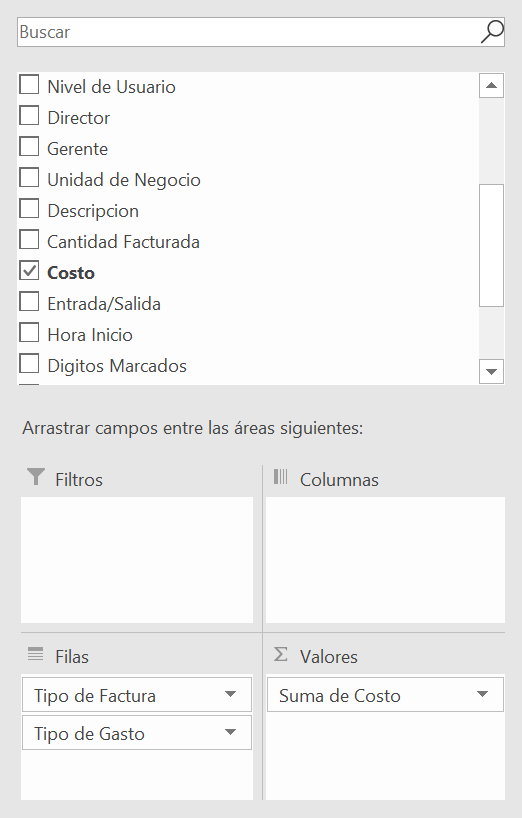
IMAGE 10: Options on creating a Pivot Table
Like this you can easily visualize the concepts from your invoice.
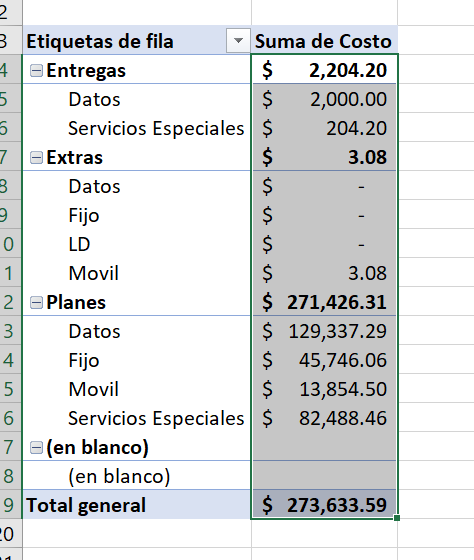
IMAGE 15: Pivot Table
14. The amounts in each concept should coincide with your invoice. The Grand Total shown in the detail shown be equal to the sub total in your invoice (PDF) since the billing details are shown befor taxes. Below you can see images showing the comparison of the Billing Details with your Invoice.
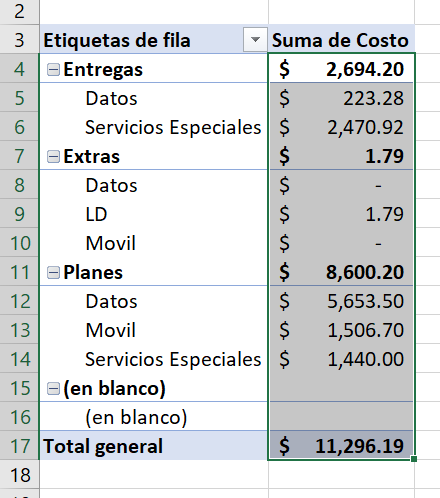
IMAGE 16: Amount comparison on Billing Detail

IMAGE 17: Amount comparison with Invoice
This way you can check the amounts on your invoice, analyze if you have extras consumptions and understand your monthly invoice from your account.
For more details email us at soporte@playtelecom.com
What can I do if I need to change the email access?
If you wish to change the email address for your access to the billing portal and receive our monthly invoice in a PDF and XML format please email us at soporte@playtelecom.com.
Comments
0 comments
Please sign in to leave a comment.